Docker for Beginners: Learn Containers from Scratch
Learn what containers solve and how Docker makes development environments repeatable.
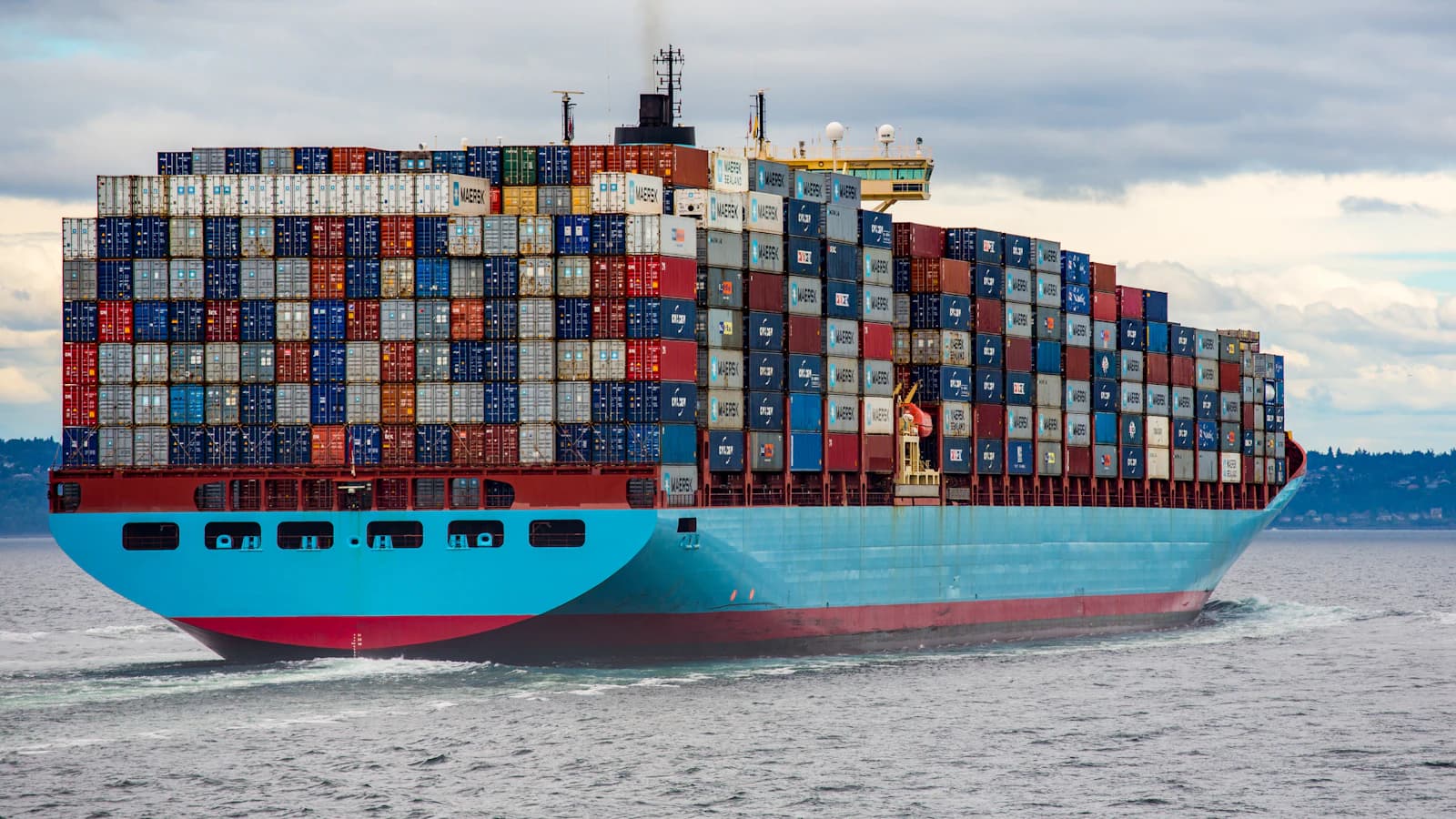
A container packages an application with the environment it needs. This reduces the familiar "works on my machine" problem — the situation where code runs fine for one developer and breaks the moment it reaches a teammate's laptop, a test server, or production, because something about the surrounding environment was different: a library version, an operating system quirk, a missing config file nobody remembered to mention.
Docker is the tool most people mean when they say "containers." This guide walks through what a container actually is, how to write your first Dockerfile, and how to run a single service before you touch anything more complex.
What a container actually is
It helps to start with what a container is not. It's not a full virtual machine. A virtual machine emulates an entire computer — its own operating system kernel, its own drivers, the works — which makes it heavy and slow to start. A container is much lighter: it shares the host machine's operating system kernel, but keeps its own filesystem, its own processes, and its own view of the network, isolated from everything else running on that machine.
Think of it this way: a virtual machine is like building a separate house for every guest. A container is like giving each guest their own furnished room in the same house — isolated enough that they don't interfere with each other, but without the overhead of pouring a new foundation every time.
This is why containers start in a second or two, while virtual machines can take a minute or more. It's also why you can run dozens of containers on a laptop without much strain, something that would be impractical with the same number of virtual machines.
A container image is the packaged, read-only blueprint — your application code, plus the exact runtime, libraries, and files it needs. A container is a running instance of that image. You can start multiple containers from the same image, the same way you can bake multiple identical loaves of bread from the same recipe.
The problem this actually solves
Before Docker, setting up a development environment usually meant a document titled something like "how to set up your machine," with a long list of manual steps: install this specific version of a language runtime, install this database, set these environment variables, hope you didn't miss a step. Small differences between machines — a slightly different library version, a missing system package — caused bugs that had nothing to do with the actual application code.
A Docker image collapses that whole setup into something you build once and run anywhere Docker is installed. The environment described in the image is the same on your laptop, your teammate's laptop, the test server, and production. If it works in the container on your machine, it will behave the same way in the container anywhere else, because it's not actually running in "your machine's environment" at all — it's running in the environment defined by the image.
That said, containers aren't magic. They solve environment consistency, not every kind of bug. A container running on a machine with far less memory than it expects will still run out of memory. A container still depends on the host's kernel version for certain low-level features. It's a big improvement over unmanaged local setups, not a guarantee that code will behave identically in absolutely every condition.
Write a Dockerfile
A Dockerfile is a plain text file that describes, step by step, how to build a reproducible image. Each line typically adds one layer to the image, and Docker caches these layers so that rebuilding after a small change doesn't require redoing everything from scratch.
Here's a simple example for a small Node.js application:
FROM node:20-alpine

WORKDIR /app

COPY package*.json ./
RUN npm ci --production

COPY . .

EXPOSE 3000
CMD ["node", "server.js"]
A few things worth understanding line by line:
FROM node:20-alpinepicks a starting image. Thealpinevariant here is a much smaller base image than a full Linux distribution, which keeps the final image lean. Smaller images build faster, transfer faster, and have a smaller attack surface.WORKDIR /appsets the working directory inside the container, so later commands don't need long file paths.COPY package*.json ./followed byRUN npm ciis intentionally split from the rest of the code copy below it. Docker caches each layer, and this ordering means that if you only change your application code (not your dependencies), Docker can reuse the cached dependency-install layer instead of reinstalling everything from scratch every time you rebuild.COPY . .copies the rest of the application code in, after dependencies are already installed.EXPOSE 3000documents which port the app listens on. It doesn't actually publish the port on its own — that happens later, when you run the container.CMDis the command that runs when a container starts from this image.
A few habits keep Dockerfiles small and reliable:
Keep it small. Every layer adds size. Choosing a slim base image, cleaning up temporary files in the same step that created them, and avoiding unnecessary tools inside the image all add up. A smaller image is faster to build, faster to push and pull, and has less surface area for something to go wrong.
Copy only what's needed. Don't blindly copy your entire project directory in one step at the top of the file — it defeats the caching benefit described above, and it risks pulling in files you didn't mean to include, like local environment files or dependency folders that should be installed fresh inside the container instead.
Use a .dockerignore file. This works like a .gitignore file, but for what gets sent into the image build. Without it, Docker will happily copy your node_modules folder, your .git history, local .env files with secrets in them, and other things that have no business being baked into an image. A typical one for a Node project looks like:
node_modules
.git
.env
npm-debug.log
Dockerfile
.dockerignore
This keeps the image smaller, the build faster, and — importantly — keeps local secrets from accidentally ending up inside an image that might get pushed somewhere shared.
Run one service first
Once you have a Dockerfile, build and run the application on its own before adding a database or wiring up multiple containers together. Getting one container running correctly is a much smaller problem to debug than getting several containers to talk to each other correctly, and mixing the two together makes it hard to tell which layer a problem is coming from.
Build the image:
docker build -t my-app .
Run a container from it:
docker run -p 3000:3000 my-app
The -p 3000:3000 flag maps a port on your machine to a port inside the container — the first number is the host port, the second is the container port. Without this, the application is running inside the container, but nothing on your machine can reach it.
A few commands worth knowing early on:
docker ps— lists running containers.docker logs <container_id>— shows a container's output, useful for figuring out why something isn't behaving as expected.docker exec -it <container_id> sh— opens a shell inside a running container, which is often the fastest way to poke around and check what's actually happening on the inside.docker stop <container_id>— stops a running container.
Get comfortable with this loop — build, run, check logs, adjust the Dockerfile, rebuild — before moving on. It's the same loop you'll use constantly once things get more complex, just with more moving parts.
What comes after this
Once a single service builds and runs reliably, the natural next step is usually adding a database or a second service the application depends on, and that's where tools like Docker Compose come in — letting you describe multiple containers and how they connect in one file, instead of manually running several docker run commands and wiring up networking by hand. It's worth learning that step deliberately rather than skipping straight to it, because most of the confusing bugs people run into with multi-container setups — a service that can't reach its database, environment variables that aren't where they're expected — are much easier to reason about once you're solid on how a single container works on its own.
Docker doesn't remove the need to understand your application's dependencies and configuration. What it removes is the drift between environments — the gap between "works here" and "works everywhere it's supposed to." Getting comfortable with one container at a time is what makes that gap actually close, instead of just moving somewhere else.